Google
Search Operators 2022
Part 1
As motivation, a reminder of what the goal is with the list of hits returned by any search engine:
The goal with Information retrieval is the efficient recall of information that satisfies a user’s information need.
In other words: Return hits to the user, that give him the information he
was looking for with his query.
This is an up to date list of the ‘basic’ google search operators, that are
working in 2022. Since these make up most of the search operators or even
all, that one should know in order to make their google searches more
efficient and more relevant, these operators will be simply be called search
operators in the following. There have been quite big changes to the names of
a number of operators in this list over the last year. That is part of why I
decided to write this post.
In this post I will introduce and give examples of how each search operator can
be used in the search field of google.com and any country
specific extension of google search as well. Since the search operators can be
Combined with each other in a query, there are many combinations, that I won’t
be able to include in this post. What I try to do, is show the basic usage for
each of the search parameters and try to give ideas of how they can be combined
to return search results that are relevant to the user. There is one very
important caveat about using any google search operator:
The search operators always have to be written in English in order to be invoked. One can specify their value in another language though.
Disclaimer: In some examples the time frame for how old results are allowed
to be is set to 1 year. This can be seen in the examples with images showing the
result list. This is chosen, as oftentimes results older than one year are
irrelevant by now. The exception to this are queries that specify something that
is not of a timely manner. This can be for example stack overflow questions
and answers or topics that have relevant matches further back in the past,
newspaper articles for example. This is mainly relevant for the reproducibility
of the results from the examples I use throughout this post.
Google Search Operators List
Exact Match ""
This is probably the single most powerful operator. It takes some practice to
find the line between narrowing down the hits google returns too much and the
returned hits not being specific enough.
One important fact to keep in mind when looking to get more relevant hits in return to ones query, is that the order of returned hits is generally the most important metric to use when checking results. If the order is good enough, e.g., the first 3 results on the first page are all highly relevant, then it does not matter if the total of returned hits is 20 or 20.000.000. However, an increase in the number of results in the order of magnitude as in the previous example, can make finding the ‘correct ordering’ of the returned results much harder.
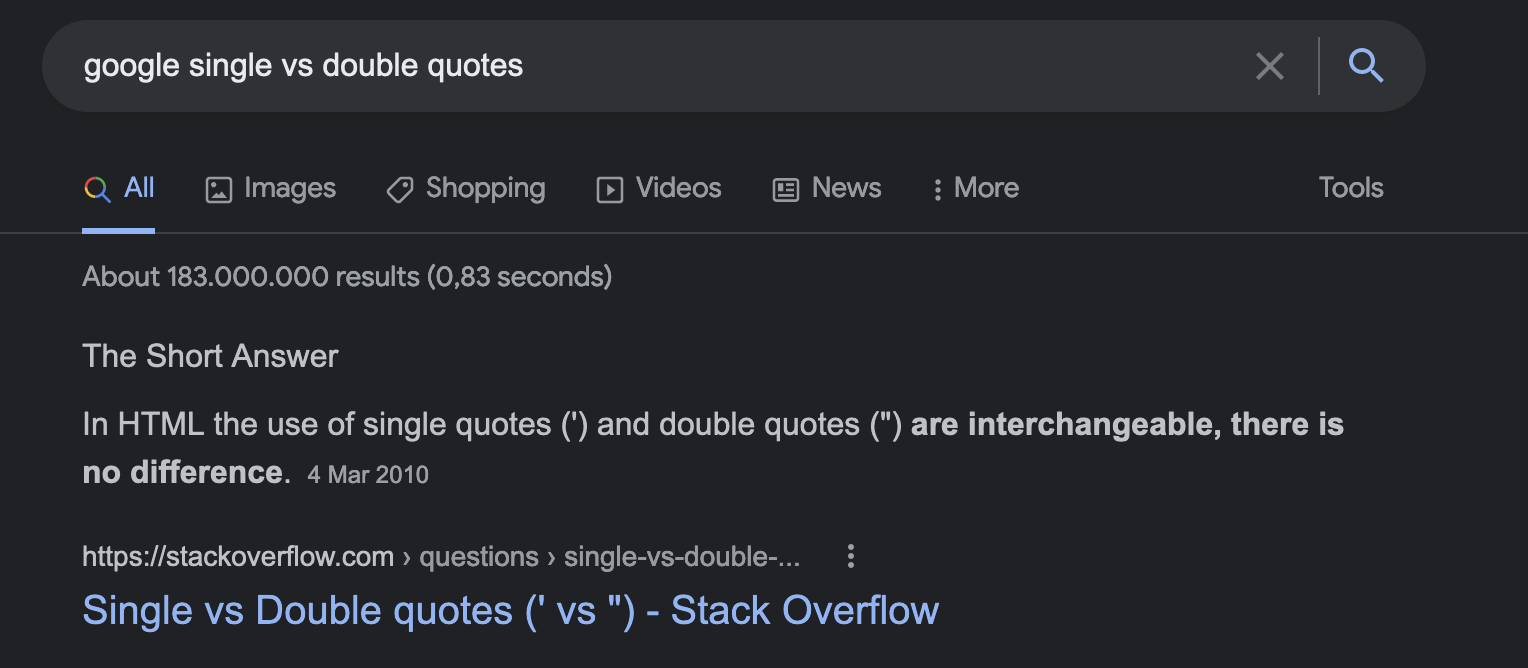
There is no difference between single and double quotes for anything one writes
in the search bar or in an HTML environment in general (There are many
caveats to this statement though), as quoted from this Stack Overflow question:
"<search term>" Forces google to only return hits, that contain the exact
match <search term>. The syntax is:
"<search_term>" or equivalent '<search_term>'
The quotation marks have to be immediately before and after the end of the
search term or immediately before the first word and immediately after the last
word in a multi word search term.
Spaces between words are allowed, as long as they are supposed to be matched
exactly as well. The following examples show the effect that various uses of
the quotation marks have on how restrictive the query is for the web search
algorithm:
1
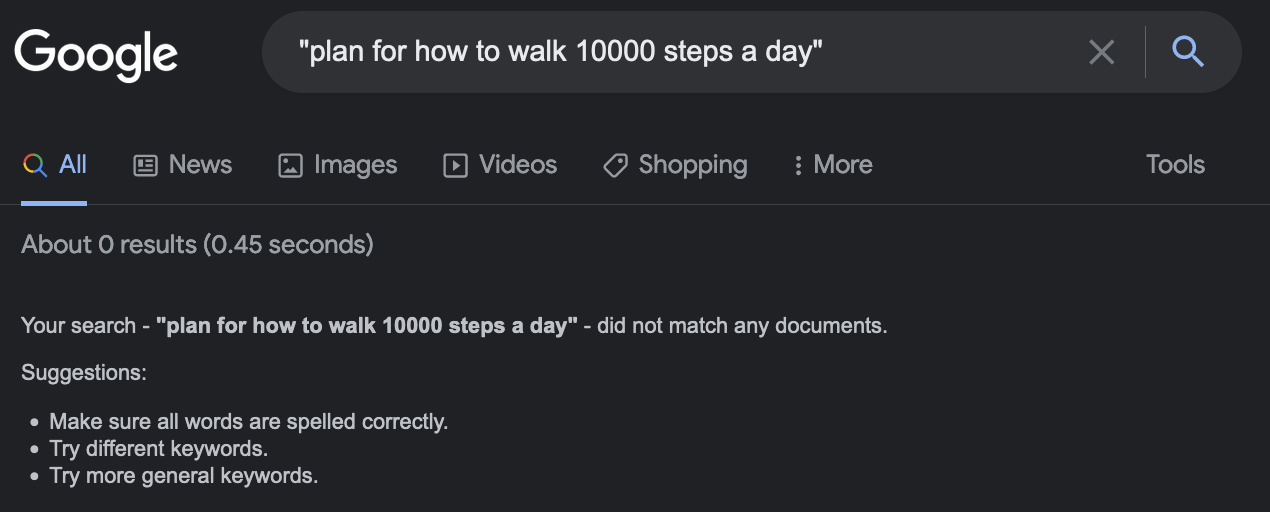
"plan for how to walk 10000 steps a day"
This query, even though the word for was added in the query to make it a
phrase a human could say, did not return a single result, as shown in the image
below.
The option ‘without any quotation marks’, might work, if what someone is
searching, is a topic that generally is well separated from other topics. This
is close to what is called a partition in Mathematics, a set whose intersections
with other sets are all empty.
In reality, especially when using a search engine like google, that is rarely
the case. In the image below one can see that there are roughly 23 million
results for the query without any quotations. The top result, in this instance,
is a good example for what can happen when the google search algorithm is
allowed to use a little bit more of its magic.
The top result comes from the URL https//organizingmoms.com. I have never
heard of this site and certainly not in regard to ‘How to Get to 10.000 Steps a
Day’ fitness plans. I do not intend on taking any credit away from them, nor do
I say that the hit is not a good top result.
What I am trying to say, is that when one gives the google search algorithm some
leeway, the hits featured on the first page of the list of results should be
critically assessed for relevancy and quality. These two things should always be
checked for, for any hit, but even more so in this scenario.
The actual query, that was sent is shown below and the total of close to 23
million results are shown in the following image.
1
plan how to walk 10000 steps a day
The query, where no quotation marks were used.

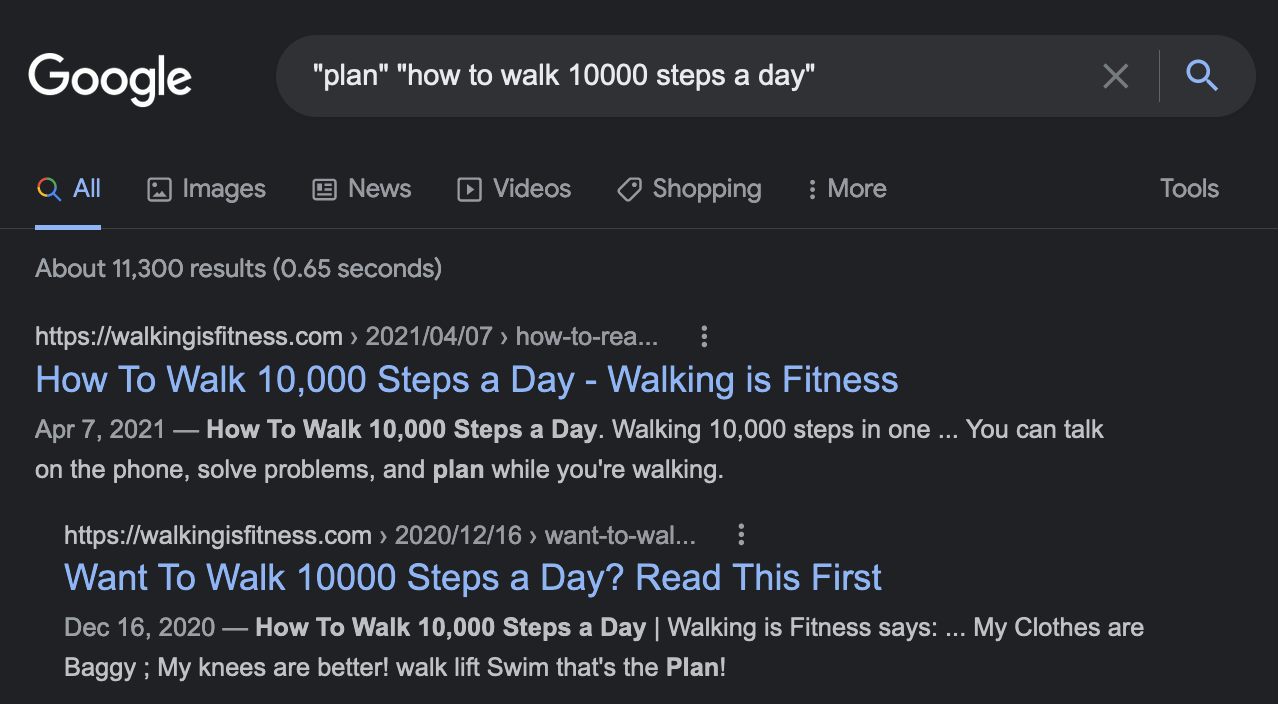
The last scenario is the one where several words with white space in-between
them are used to give google more flexibility in how it is allowed to combine
the individual blocks in the query. In this case, ‘how to walk 10000 steps a
day’ was tried/used as a common enough phrase, that should not be too specific
or too narrow to yield a healthy amount of results.
1
"plan" "how to walk 10000 steps a day"
The query, where two parts were put into seperate pairs of quotation marks.
It often comes down to a loop consisting of:
1. Writing a search query, that summarizes what one is looking for.
That initial search query largely comes from the gut and only avoids common
pitfalls, creates a better initial query, as the technical knowledge
increases.
2. If the results are satisfactory, no need to write a more refined version
of the initial query. However, if the retuned hits are not relevant enough, it
is best to try again with an updated version of the current query. One repeats
the cycle of step 1., followed by step 2., until the results are
satisfactory or one finds out that google is of little help in finding the
information one is looking for in the particular case.
While it is a relevant subject, optimizing by experimenting with surrounding
various parts of a query with parenthesis, the quality of the results from
using it can often be very volatile. That is why, in the following, the focus is
on the actual google search operators.
My general mindset, when looking at the returned hits, is that any returned hit needs to convince me first, in terms of its quality and relevance.
Logical OR
Acts as a logical OR and therefore will allow google to return all hits, where
<search term 1> or <search term 2> have a match and as such, where both search
terms are matched as well.
This operator will force one to quickly having to use parenthesis around the alternative search terms and so can become quite cumbersome, when used in longer queries.
Example OR
- Information to gain with the search query about different generations of BMW
- 3 Series.
- Precisely for chassis codes E36, E46, E90
- E36: 3 Series, 1992–1999 (third generation)
- E46: 3 Series, 1999–2006 (fourth generation)
- E90: 3 Series, 2005–2011 (fifth Generation)
- We want to know which generation is the most reliable in general.
We run this query in the google.com search field:
1
most reliable generation "E36" OR "E46" OR "E90" "3 series"
We do get relevant hits with it, that look promising.
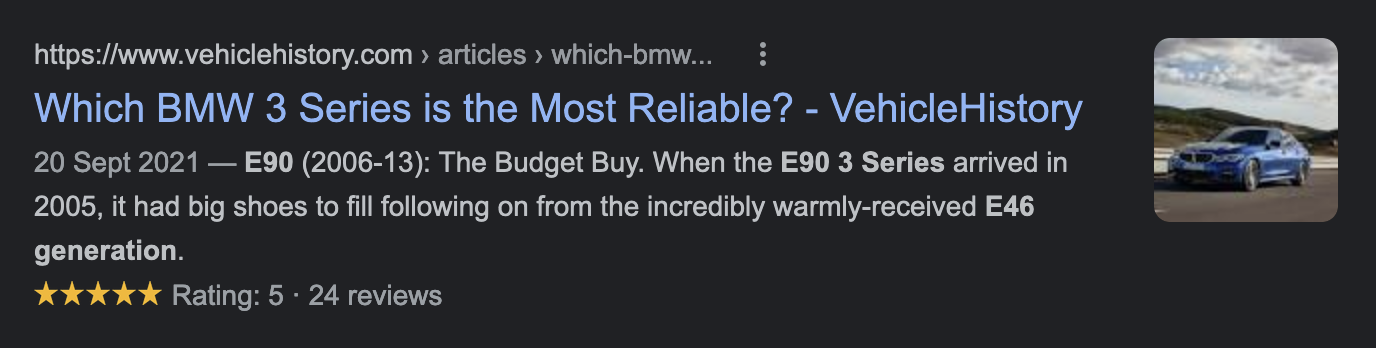
Link to Search Result in image above.
Logical AND
AND is the logical AND. It forces google to only include results where the
search term or what is written inside parenthesis () before AND and the
search term or what is written inside parenthesis after AND are both
matched.
Example AND
In the following, the goal is to find information about the Chassis Code of BMW
Series 3 cars, produced in 1992. Which tells what generation these cars belong
to.
1
BMW 3 Series Chassis code AND 1992
First result delivers the information.
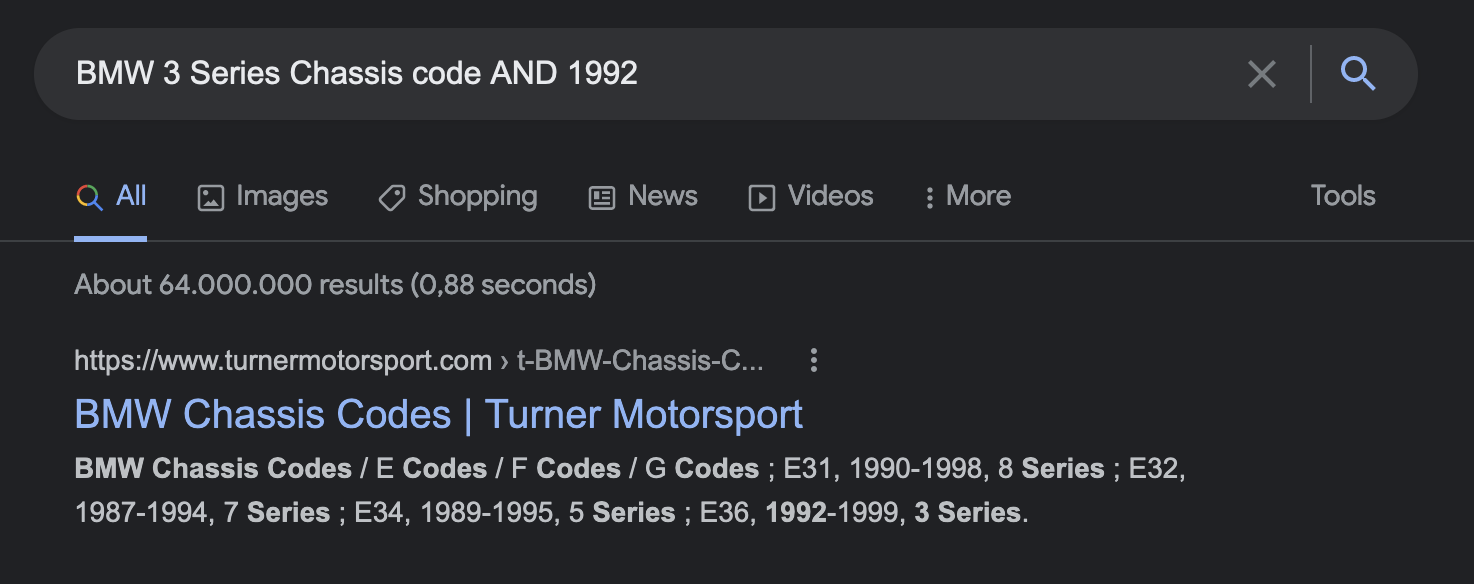
E36 is the Chassis Code for 3 Series produced in 1992
Exclude -
The - (dash) excludes whatever comes immediately after it. It can be used to exclude a word like so:
1
microsoft 10 backup built in -"cloud"
-"cloud" was added to exclude cloud backup solutions, such as OneDrive
which is a Microsoft owned service and so can be a valid return to the built
in keyword in the query.
I would advise against not putting the excluded word or phrase inside quotation
marks, as it will let the algorithm exclude other related terms and not the one
specified for example. It might do other things as well in this case…
With exclusions, actually telling the algorithm what to exclude (and nothing
else) from the search results seems to give reliable and foreseeable
results.
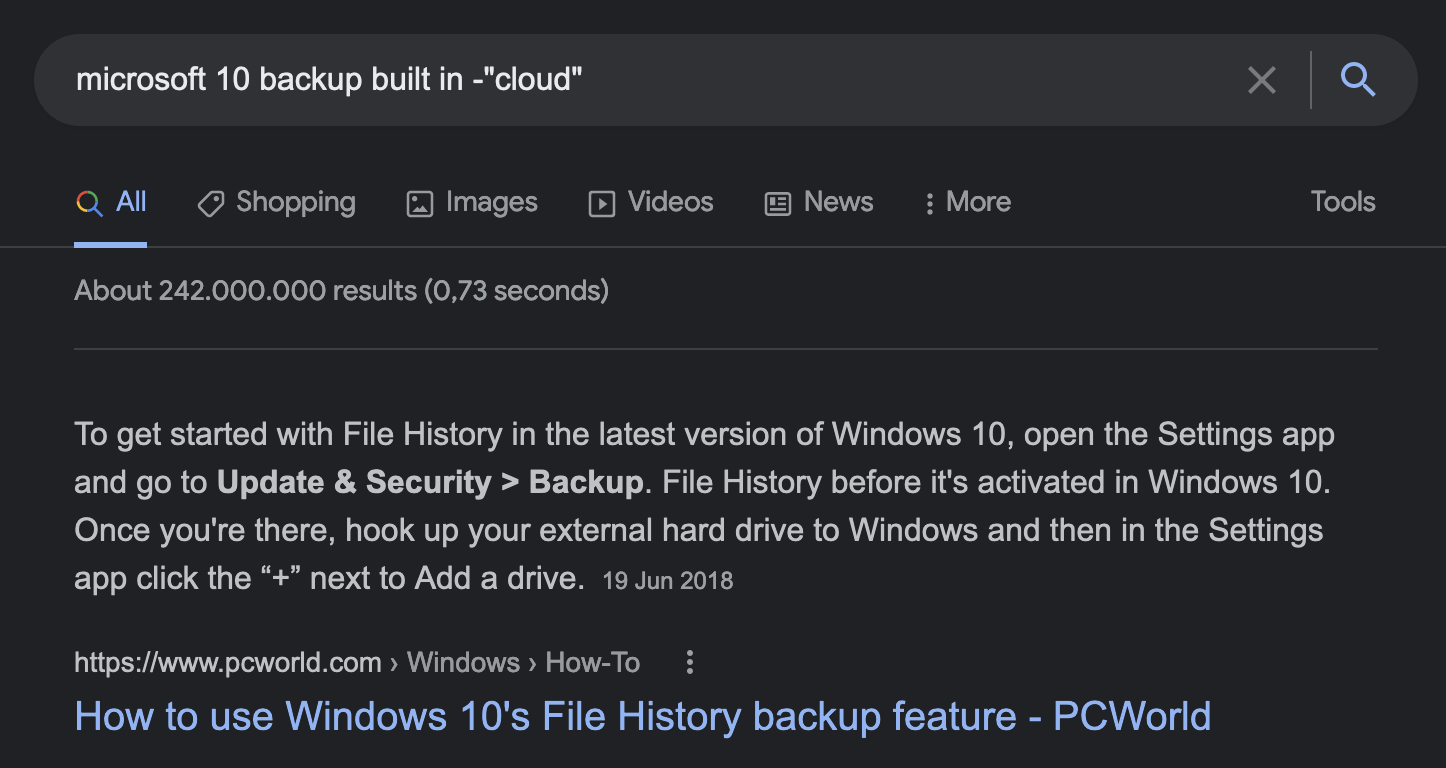
Excluding phrases or anything that has white space in it, makes using quotation
marks around what is to be excluded non optional. E.g.,
These work without parenthesis:
Exclude results, that have the word iMusic in them, since iMusic has a built
in equalizer (and apple support pages tell customers, that this is the only
equalizer needed on Mac. A caveat is, that it only works while using iMusic.
Like that, I found a system-wide free alternative on Github.
1
"apple system wide equalizer" -imusic
1
"book of happiness" -amazon
These do not work without parenthesis:
Search for subway, like the Sandwich Chain and not in the context of public
transport.
1
"subway" "NYC" -"public transport"
Look for a Thunderbolt 3 cable and not for a USB-C cable, both cables fit in the
same physical interface, but can not be used interchangeably in general. Without
parenthesis, the dash in USB-C would throw the google search algorithm off.
1
"thunderbolt 3 cable" -"USB-C"
Fill *
The * acts as a wild card, that will match any word or phrase.
Example *
Let’s say, that one remembers hearing something about U.S. Census, but never
really understood what it is. One could send a query like this:
1
Census *
Which would show this as the top hit. Out of over 4 Billion results, that
top hit gives the right information
.
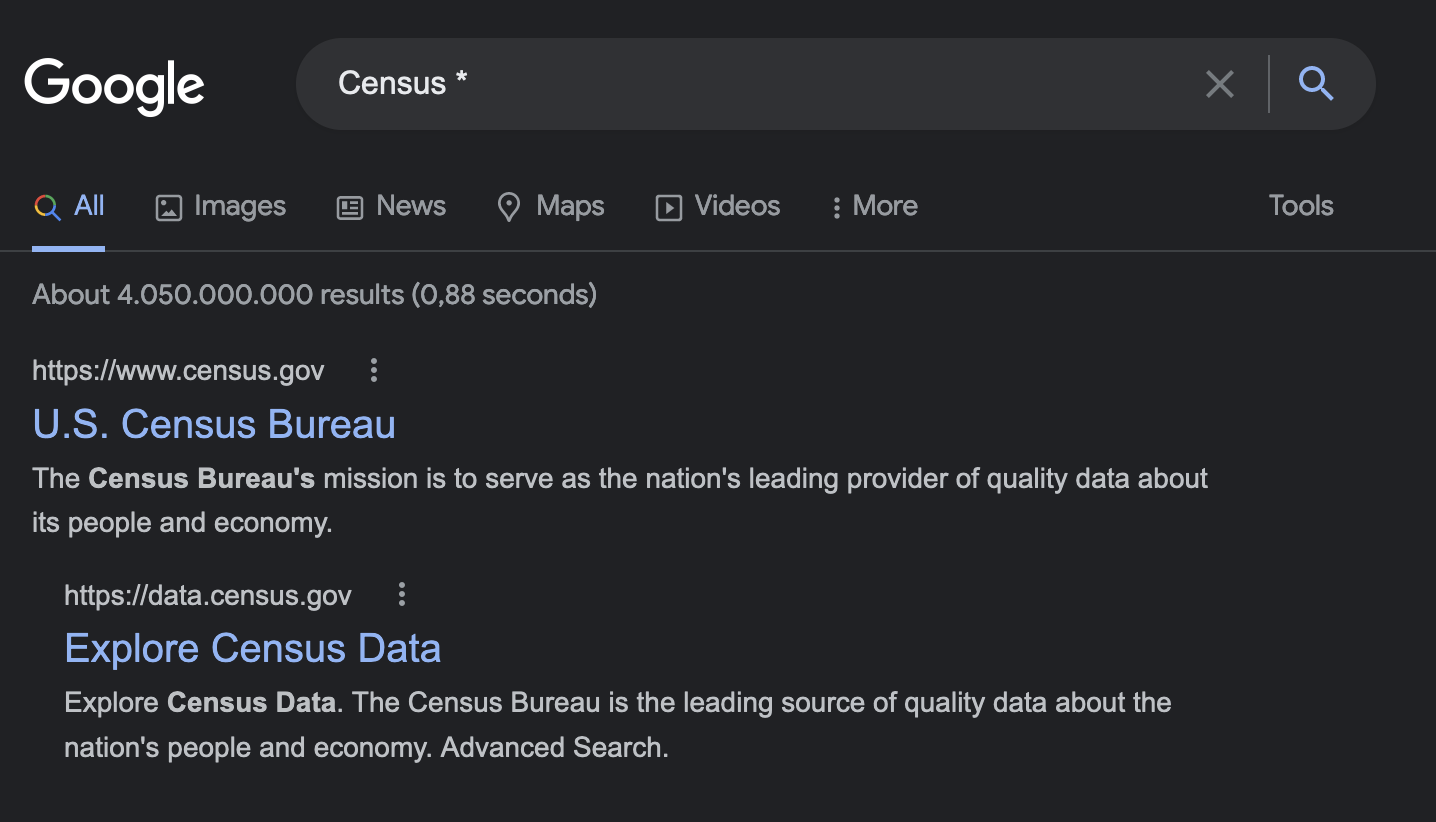
Price Operator $
This operator will look for prices in the results it will show. The user has to
supply exact numerical values for the price they are looking for. . and ,
are allowed as decimal separators in the price statement. E.g.,
1
2
3
$9 # Will match anything that costs $9.
$99.99 # Will match any price of 99 Dollars and 99 Cents.
€1,99 # Will match anything that costs 1 Euro and 99 Cent.
The sign before the actual price value, will be interpreted as the currency the
price is in. The use of quotation marks around the price term, can help keep
results relevant. Quotation marks do not escape the operators special meaning in
the search, as I tested. The following all gave the exact same results. I tried
it with a few other price terms to add some more qualitative evidence to my
observation. There were no results found, that suggest that this search operator
can be escaped by use of quotation marks either.
1
2
3
4
5
6
7
8
"$" "1.99"
\"$\" "1.99"
\"$\" \"1.99\"
"$1.99"
\"$1.99\"
"\$1.99"
"$ 1.99"
"\$ 1.99"
Example Price Operator $
Practical uses include, but are not limited to:
1
2
3
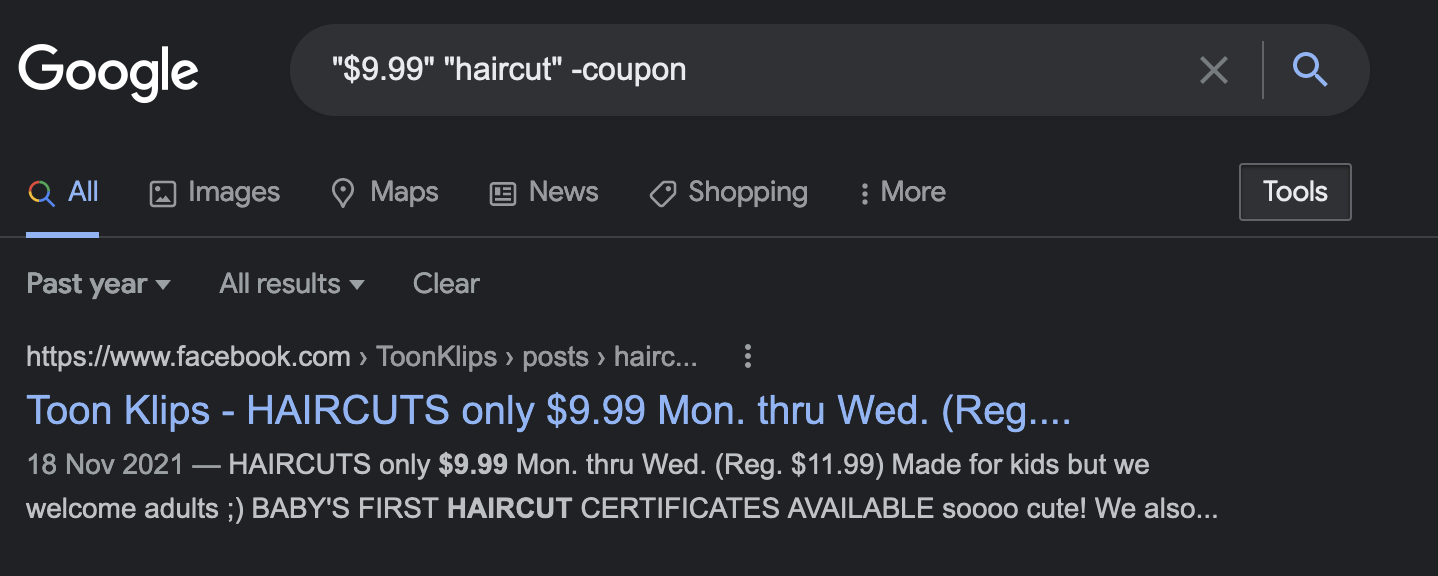
"$9.99" "haircut" -coupon # The exclusion of "coupon" was necessary in this
case.
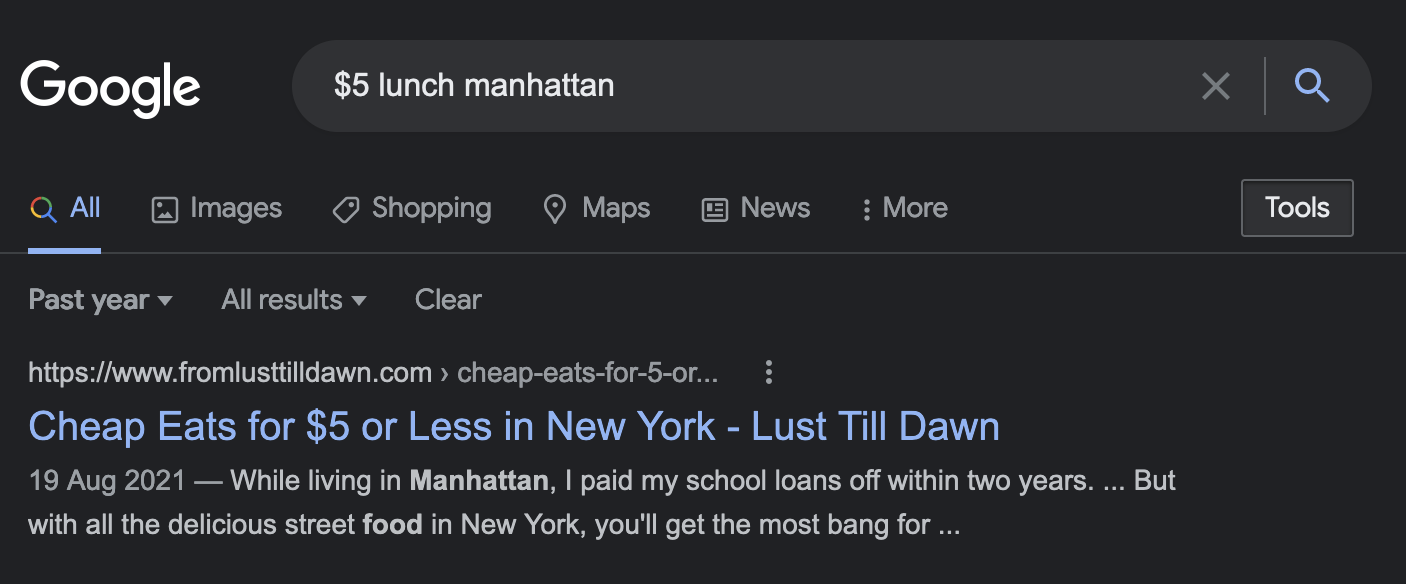
$5 lunch manhattan
With the haircuts, there were a lot of unrelated results, that already were
missing haircut after a few results down the list. Many coupon matches for
haircuts meant I had to exclude coupons like this - coupon.
There were also matches with 9.99 Pounds, which had to be excluded by means of
using the exact match operator around the price term by adding quotation
marks around the price term, like so: "$9.99".
A guide on how to eat for less than $5 in Manhattan is the Number one Result.
define
Syntax is define:<search term> or, if <search term> has white space in it,
the syntax is define:"<search term>".
define will prioritize results that contain factual information about
whatever was specified in <search term> over other information about it.
This can be useful, if one wants to learn more about a product and not get
mostly results with buying options for that item.
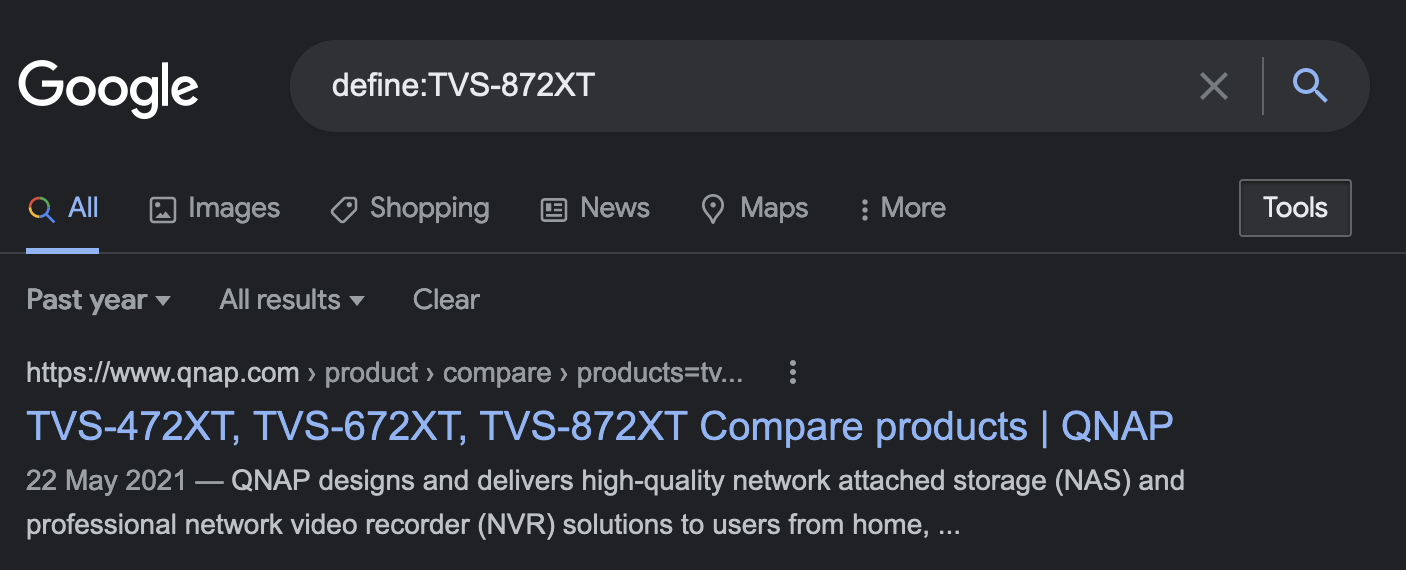
The define operator was used like that in the following example. A NAS from
brand QNAP was passed along as <search term> and the first query made use of
the define operator, while the second one did not.
Example define
1
define:TVS-872XT
Which resulted in the very accurate result that takes one directly to the
technical specifications section on QNAP’s website.
Without the define operator, the results focus on the prices of various
sellers.
1
TVS-872XT
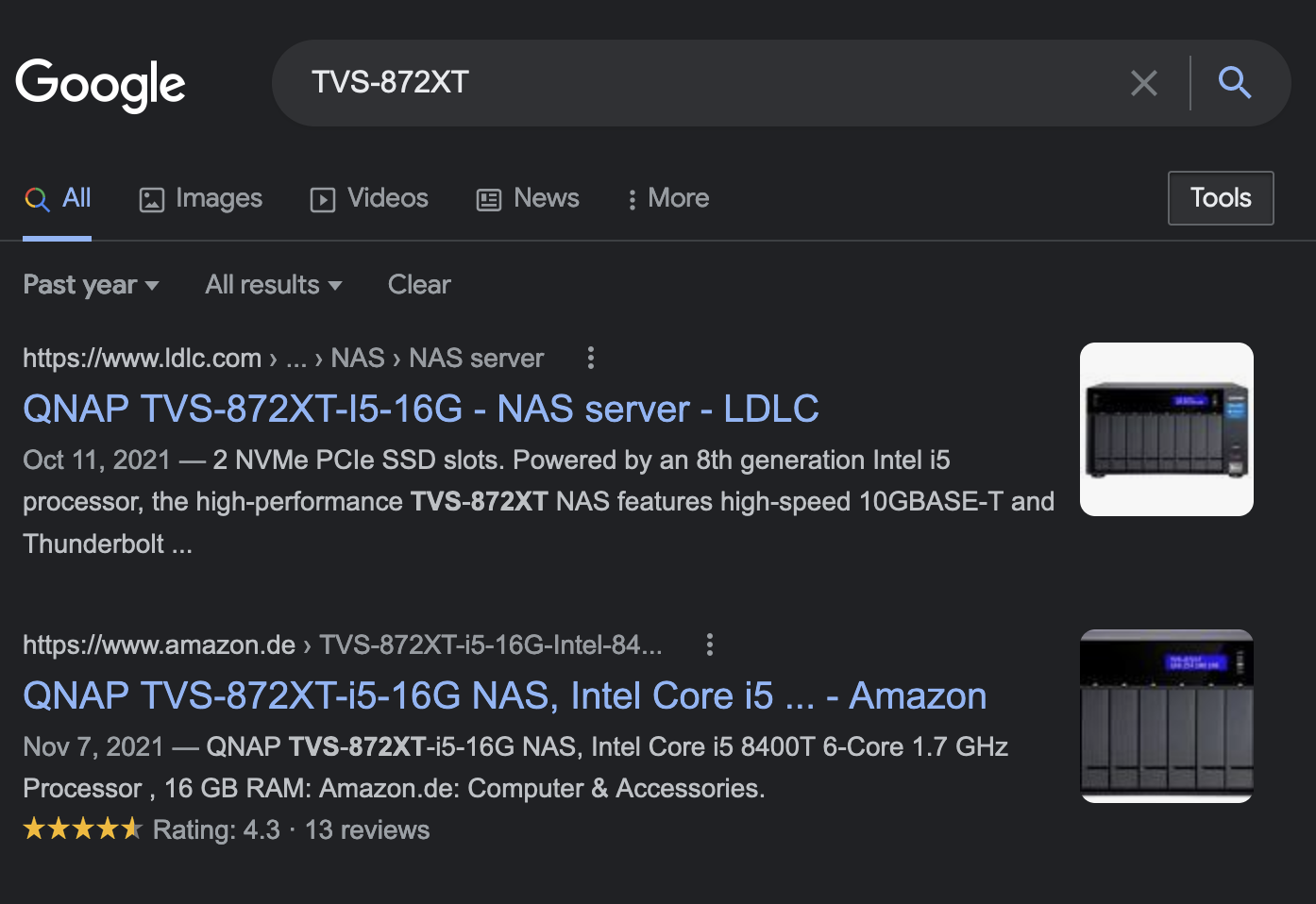
One can see the stark difference between the top results for each of the two
methods.
Cache
Cache will return the most recent cached version of a web page, if it is
indexed by google.
This can be useful, if a web page is down for some reason or if there has been
recent changes to the content of that web page, that one wants to be able to
ignore when viewing the page. Things like the deletion of media or articles,
that one wants to visit again, after they have been deleted from the web
page.
Example Cache
1
cache:https://www.backblaze.com/blog/how-long-do-disk-drives-last/
Nothing much has changed on the web page in the example, so the cached and the
current version of this article will be the same. Another use case can be when
using a VPN connection, that makes one have an IP address, that is banned from
accessing the URL one is trying to open. An earlier, cached by google, version
of the URL one is trying to visit will be accessible regardless of the ban.
filetype
This operator is very powerful, if one is looking for content, that can be
downloaded and searched using the direct URL of the actual file.
Below is a, as of 2022, complete list of supported file types, directly from
google.
| File types indexable by Google - Search Console Help |
|---|
| Adobe Portable Document Format (.pdf) |
| Adobe PostScript (.ps) |
| Autodesk Design Web Format (.dwf) |
| Google Earth (.kml, .kmz) |
| GPS eXchange Format (.gpx) |
| Hancom Hanword (.hwp) |
| HTML (.htm, .html, other file extensions) |
| Microsoft Excel (.xls, .xlsx) |
| Microsoft PowerPoint (.ppt, .pptx) |
| Microsoft Word (.doc, .docx) |
| OpenOffice presentation (.odp) |
| OpenOffice spreadsheet (.ods) |
| OpenOffice text (.odt) |
| Rich Text Format (.rtf) |
| Scalable Vector Graphics (.svg) |
| TeX/LaTeX (.tex) |
| Text (.txt, .text, other file extensions), including source code in common |
| programming languages: |
| Basic source code (.bas) |
| C/C++ source code (.c, .cc, .cpp, .cxx, .h, .hpp) |
| C# source code (.cs) |
| Java source code (.java) |
| Perl source code (.pl) |
| Python source code (.py) |
| Wireless Markup Language (.wml, .wap) |
| XML (.xml) |
The syntax of filetype with pdf as example, is:
filetype:pdf.
Whenever one is looking for an actual file and not content on a web page, that
can not be downloaded this operator comes in handy.
Example filetype
To give ideas of how this operator can be used, a few examples follow:
- One is looking for the manual of a device one owns:
1
2
3
"iphone 13" "manual" filetype:pdf
"algorithms" "cs" "princeton" filetype:pdf
"hard drive" AND "failure" AND ( filetype:csv OR filetype:zip OR filetype:json )
These are some examples of how the filetype operator can be used.
site
The syntax is site:'someurl' <search term> ...
One can basically do an in-site search for ‘someurl’ using the powerful google
web search algorithm and all the operators available.
related
The related operator has the syntax:
related:<keyword> ... or related:"<search term>" ...
The latter in the case of a <search term> with spaces in between.
It is a proprietary google operator in the sense, that it is unknown what is
related in the eyes of the algorithm.
Use it, if the results are good is what I would suggest.
intitle
intitle will look for matches in titles of articles, blog posts and
basically anything that has a title for that matter.
Example intitle
1
2
intitle:Häkkinen
intitle:Häkkinen schumacher
The first one returns the Mikka Häkkinen Wikipedia
article
as the first result.
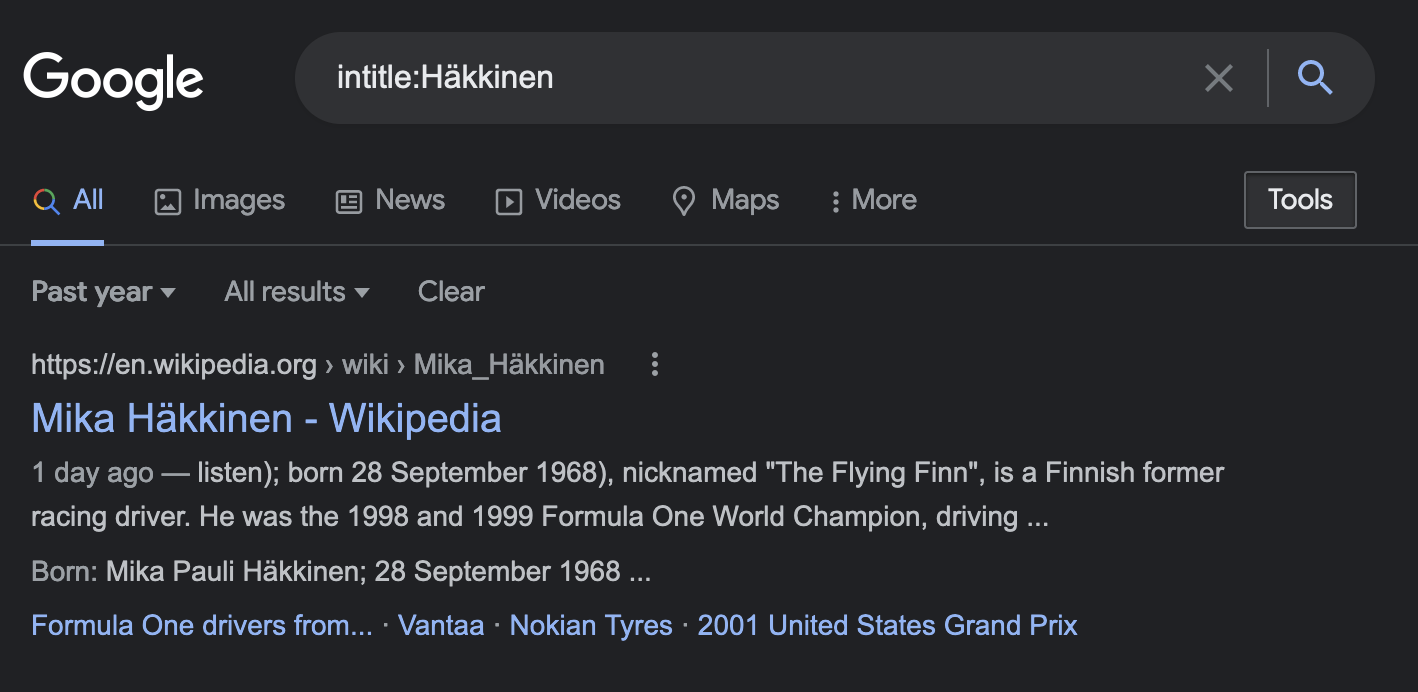
The second line gives this as the top result, which shows nicely what the
operator does:

allintitle
This operator is simply the intitle operator where quotation marks are used
on every instance, where it is called. Syntax is:
allintitle:<search term 1> <search term 2> ...
One does not need to add quotation marks around any of the search terms
following the allintitle operator. The algorithm will assume, that they all
have to be part of the title.
Example allintitle
Running the following query only resulted in one result. This goes to show, that
the operator only accepts exact matches.
1
allintitle:formula 1 cornering